checkoutwoocommerce

WooCommerce Guest Checkout: Enable It and Track Orders
October 28, 20268 min read·ShopMonitor Team
Loading…
WooCommerce guest checkout starts with one setting: WooCommerce > Settings > Accounts & Privacy > "Allow customers to place orders without an account." Save it and buyers can pay without registering. The real decision comes next: does an account requirement earn enough customer data to justify the extra friction, and can a guest still find their order three days later?
WooCommerce guest checkout setting location
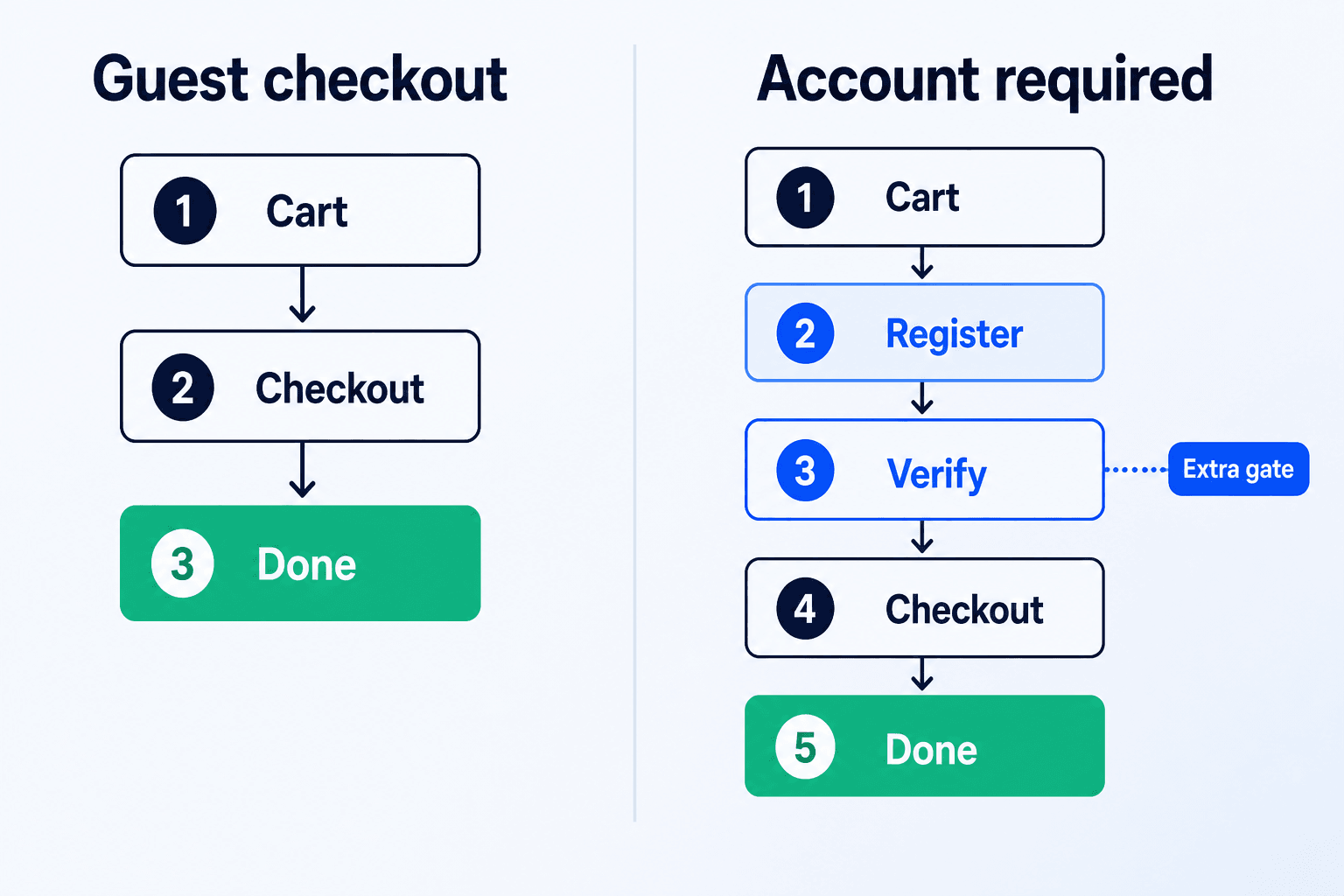
Neither setting is universally right. The choice decides where your store absorbs friction: before payment, or later in retention, reporting, and support.
Conversion Impact
Every required field gives a ready-to-buy shopper another reason to pause. An account requirement adds a password, password rules, and often a detour through a password manager at the exact point they intended to pay. For stores selling physical one-off products, that is often enough reason to leave guest checkout enabled.
Treat published conversion lifts cautiously. They belong to someone else’s traffic, product mix, price point, and checkout. Compare completed orders with started checkouts before and after the change in your own store, then leave the test running long enough to be meaningful.
Customer Data and Marketing Trade-off
A required account creates a customer record with the first order. A guest order holds an email address but no attached user. That distinction affects more than reporting:
None of this makes guest checkout unworkable. Many stores keep it on and offer account creation after the purchase, when the payment decision is already complete.
Support Implications
Guest checkout compared with a required account
| Dimension | Guest checkout on | Account required |
|---|---|---|
| Checkout friction | Lower, with no password step | Higher, with extra fields and rules |
| Customer record | Created only after a later opt-in | Created with the first order |
| Order history for the buyer | Via the order link or tracking form | Full list under My Account |
| Repeat purchase tracking | Manual matching by email | Built in |
| Support load | Higher without a tracking page | Lower |
| Typical fit | Physical goods, one-off purchases, gifts | Subscriptions, memberships, downloads, B2B |
This is where many stores leave guests stranded and support teams pick up the cost. A guest order is not inaccessible. WooCommerce provides two routes for how to access the link on a guest order, and both deserve a clear place in your customer journey.
After payment, WooCommerce sends the buyer to an order received URL like this:
https://example.com/checkout/order-received/1284/?key=wc_order_9f2Ac1bXqR7Nz
The number is the order ID. The key parameter is a random order key that WooCommerce generates and stores with the order. Together they work as the credential: someone with that exact URL can view the order, while the order ID alone is not enough. WooCommerce includes this link in the order confirmation email, so the buyer’s inbox often becomes the practical archive.
Treat that link as sensitive. It can show billing details and line items to whoever opens it, which is why the key is long and random instead of sequential.
WooCommerce includes a shortcode for buyers who lost the link:
[woocommerce_order_tracking]
Add it to a page such as "Track your order." It renders a compact form for the order ID and billing email address, then returns the order only when both match. This is WooCommerce’s supported guest lookup. It needs no plugin and works for guest and logged-in orders alike.
The default form is useful but bare. These improvements deliver the most value first:
If your checkout still runs on the classic shortcode rather than the block, apply the same styling rules to both the checkout and tracking pages.
The order received link has no fixed expiry timer, but access is not completely open. Recent WooCommerce versions verify visitors opening it outside the original checkout session. During the short post-order grace period, ten minutes by default, the page renders directly. Afterward WooCommerce asks for the billing email before showing details. Developers can adjust this through the woocommerce_order_email_verification_required and woocommerce_order_email_verification_grace_period filters.
Orders also follow the retention periods configured under Accounts & Privacy > Personal data retention. If completed orders are set to be anonymized after a number of months, a very old guest link can resolve to an order without its personal details.
Callout
A practical middle ground is to take the order first and offer the account second. Under Accounts & Privacy > Account creation, WooCommerce can show "Allow customers to create an account during checkout" as an optional checkbox rather than a required password field.
A post-purchase approach goes further by offering registration on the order received page, after payment is complete. Three common options:
Checkout opt-in
Order received page prompt
Follow-up email
One detail makes this strategy useful: when a customer later registers with the email used as a guest, WooCommerce can link previous guest orders to the new account automatically. Their history then appears in My Account without manual work, which gives buyers a clear reason to register.
If you build a custom prompt into the order received page, keep it visually secondary to the order confirmation itself. The primary job of that page is to reassure the buyer that the purchase went through. Our guide on how to customize the checkout page covers the same principle for the checkout form.
These four causes explain most guest checkout complaints that reach support.
Guest Orders Not Linking to an Existing Account
Session Expiry During Checkout
Caching Breaking the Order Confirmation Page
Guest Checkout Disabled by a Plugin
Callout
Guest and logged-in checkout are different code paths. They trigger different conditionals, render different fields, use different session handling, and can produce different gateway behavior when saved payment methods exist. One can fail while the other still works. If you only test as an administrator, the guest path is the one you never see and often the one doing most of the selling.
WooCommerce guest checkout versus logged in checkout paths
Run both paths in this order after any checkout, account, payment, or caching change:
Step 5 catches more than many teams expect. Administrator accounts can bypass cache layers and see fields customers never receive, so an administrator-only test proves little. Our walkthrough on how to test WooCommerce checkout covers the manual version of this run in more detail, including the guest path specifically.
Manual checks after every plugin update are where this discipline tends to fail. ShopMonitor runs checkout in a real browser on a schedule and alerts you when a step stops working, so a guest path broken by a Tuesday update does not remain unnoticed until Friday. It verifies the browser checkout and order received path, not whether a message arrived in an inbox. Inbox delivery is a separate check.
ShopMonitor runs automated browser checkout and form tests every day and alerts you when a step breaks. No code changes. No plugins. Setup in 5 minutes.
No credit card required.

About the author
Written by the team at Winning Solutions, the agency behind ShopMonitor. We help WooCommerce stores keep guest and logged-in checkout paths working through plugin updates, theme changes, and caching misconfigurations.