woocommercecheckouttesting

How to Test Your WooCommerce Checkout (Without Real Orders)
August 7, 202610 min read·ShopMonitor Team
Loading…
You updated a payment plugin on Friday. Monday morning, orders are down 40%. Nobody “broke” the homepage: the checkout did. Testing WooCommerce checkout without placing real (and expensive) orders is the difference between catching that on Friday and discovering it from angry customers.
This guide covers what to test, how to do it safely on staging and production, the failures that show up mid-test, and when to stop relying on manual runs. If you also run contact or lead forms, pair this with WordPress form failure monitoring. Forms and checkout fail for similar silent reasons.
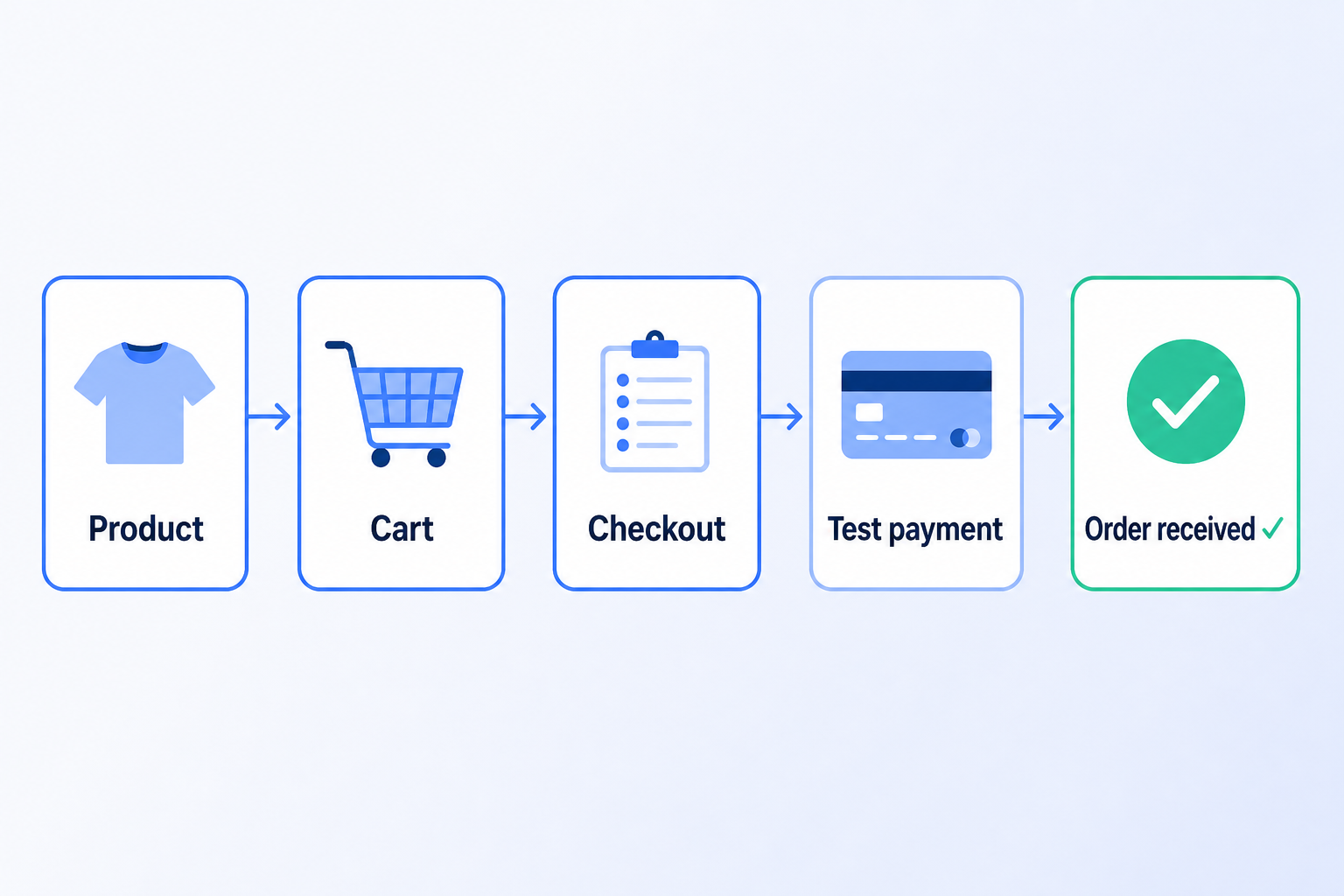
Animated diagram: a WooCommerce test purchase moves product → cart → checkout → payment → order confirmation without charging a real card.
A green homepage tells you almost nothing. Checkout is a chain: product page → add to cart → cart → checkout fields → shipping → payment → thank-you page (and usually a confirmation email). Break any link and revenue stops while uptime monitors keep saying “200 OK.”
Cart → checkout handoff
Payment submission
Mobile + guest paths
Coupons & shipping
| Area | Why it matters |
|---|---|
| Guest checkout | Most stores convert guests; logged-in-only tests miss the majority path. |
| Logged-in customer | Saved addresses, account taxes, and membership prices behave differently. |
| Each payment method | Stripe can work while PayPal or a local gateway is misconfigured. |
| Coupons / gift cards | Discount plugins often break totals or block Place Order after updates. |
| Shipping methods | Flat rate vs. table rate vs. free shipping each rewrite the order total. |
| Mobile viewport | Sticky bars, cookie banners, and theme CSS routinely hide Place Order on phones. |
Also verify the thank-you page loads and that a test order appears in WooCommerce → Orders. A payment that “succeeds” in the gateway but never creates an order is still a failed checkout.
Staging is the safest place to break things. You can flip gateways, deactivate plugins, and place dozens of orders without touching live customers or real money.
Aim for a clone that mirrors production as closely as practical:
Staging tip
Run this list every time you change WooCommerce, your theme, a checkout plugin, or a payment gateway. Check each box with a fresh incognito window.
Guest purchase end-to-end
Add a simple product, open checkout logged out, fill required fields, pay with a test method, confirm the thank-you page and order in admin.
Logged-in purchase
Repeat with a customer account. Confirm addresses prefill and that account-only coupons or role pricing still calculate correctly.
Coupon paths
Apply a valid percentage coupon, a free-shipping coupon, and an expired/invalid code. Totals must update; Place Order must stay clickable after a failed coupon.
Shipping methods
Toggle every enabled method. Watch tax and shipping lines recalculate before you pay: frozen totals usually mean a JS or fragment-refresh failure.
Mobile (≈375px)
Complete one guest order on a phone or DevTools mobile view. Scroll to Place Order; dismiss cookie/consent banners if they cover the button.
Required fields & validation
Submit with an empty required field and with a bad email. Errors should appear inline: not a blank page or endless spinner.
Sometimes you must validate the live stack: real CDN, real Cloudflare rules, real caching layers. You can do that without charging a card: by using gateway test modes and a disposable payment method.
Production caution
In WooCommerce → Settings → Payments → Stripe, switch to test mode (or use test API keys). Then place an order with a Stripe test card. The full number list lives in our Stripe test cards referencethe universal success card is 4242 4242 4242 4242 with any future expiry and any CVC.
Confirm three things: the order lands in WooCommerce, the Stripe Dashboard (test mode) shows a successful PaymentIntent, and the customer email either sends or is intentionally suppressed. If the UI says success but WooCommerce has no order, you have a webhook or Store API problem: not a “payment” problem.
PayPal’s sandbox works the same idea: create sandbox business and personal accounts in the PayPal Developer dashboard, connect those credentials in your WooCommerce PayPal plugin, and check out as the sandbox buyer. Orders appear as sandbox transactions: no real money moves.
Watch for classic sandbox gotchas: mismatched client IDs between live and sandbox, webhook URLs still pointing at staging, and “PayPal is not available” messages caused by currency or country settings that differ from production. Treat sandbox as proof the integration path works; still smoke-test live mode carefully when you flip back.
When you only need to verify cart, fields, shipping, and order creation: not the card network: enable Cash on Delivery (or Bank Transfer) temporarily, place a 0.01 / low-value order if your theme allows, then disable COD again.
COD will not catch Stripe Elements JS errors or 3-D Secure failures. Use it as a fast structural check, then re-test with a real gateway in test mode before you call the release done.
These three show up constantly when store owners “just try a test order” and hit a wall.
Nonce errors
WordPress embeds a short-lived security token (nonce) in the checkout form. If page caching serves an old HTML copy, that nonce expires while the page still looks fine. Result: Place Order fails with “nonce verification failed,” “session expired,” or a silent AJAX error.
While testing: open checkout in a fresh incognito window, view source, note the nonce value, reload, and check again. Identical values usually mean a cache layer is freezing the page. Exclude /cart/, /checkout/, and /my-account/ from page cache (plugin + CDN), purge everything, and retest.
Caching interfering with the cart
Full-page cache, object cache misconfiguration, and aggressive JS deferral all break WooCommerce fragments. Symptoms during testing: empty cart after add-to-cart, totals stuck at zero, shipping methods that never appear, or a Place Order button that spins forever.
Fix pattern: never cache cart/checkout HTML, never cache pages for users with a WooCommerce session cookie, and exclude wc-checkout / jquery from “delay JS” features while you debug. Retest after every cache plugin update: exclusion lists reset more often than people expect.
Plugin conflicts after updates
Checkout customizers, multi-currency plugins, security firewalls, and optimization suites are the usual suspects. After any WooCommerce, theme, or gateway update, run one guest test order before you walk away.
If the test fails: staging only: deactivate everything except WooCommerce and the payment plugin, switch to Storefront or Twenty Twenty-Five, retest, then re-enable plugins one by one. The first plugin that breaks Place Order is your conflict. Document it; do not “fix” it by ignoring the test on production.
Manual testing works: once. The failure mode is calendar-shaped: you test after a deploy, then three quiet weeks pass, a caching rule changes, and nobody places a test order until revenue dips.
If you have ever compared checkout monitors, you already know the category: tools that place real browser test purchases on a schedule. See our CheckView alternatives for WooCommerce roundup for how the options differ on price and WooCommerce depth: the important part is that something watches the path when you are not.
ShopMonitor is built for WooCommerce stores that need checkout proof on a schedule: without writing Playwright scripts or maintaining fragile CSS selectors after every theme tweak.
Real browser session
Full path verification
Alerts when it breaks
No code changes required
Evaluating monitors side by side? Start with ShopMonitor vs CheckView vs Shopwarden and the Robot Ninja alternatives guide if you are migrating off a shut-down tool. Manual staging tests remain useful for big releases: automation covers the other 29 days of the month.
Also useful: Robot Ninja alternatives if your old schedule died with that product.
ShopMonitor runs automated checkout and form tests every day: and alerts you the moment something breaks. No code changes. No plugins. Setup in 5 minutes.
No credit card required.

About the author
Written by the Winning Solutions team, the agency behind ShopMonitor. We build and maintain WooCommerce stores for a living; this testing playbook is what we run before releases and what ShopMonitor automates between them.