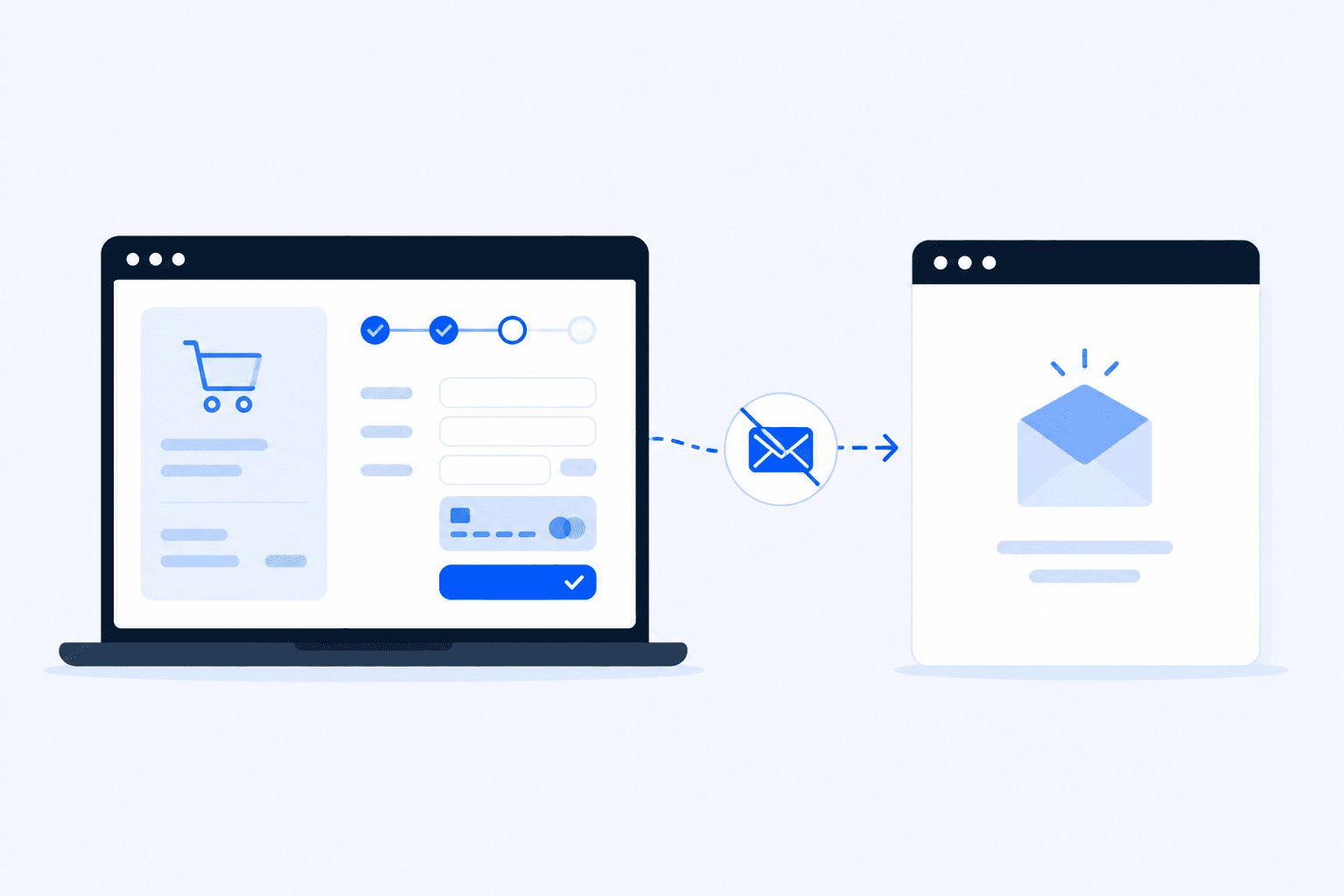
The payment went through. The order shows up in WooCommerce. But your customer never gets the confirmation email - and neither do you. That silent gap between “order placed” and “email arrived” is one of the most common WooCommerce support nightmares. This guide covers the seven fixes that resolve almost every case.
Why This Is a Bigger Problem Than It Looks
Order confirmation emails are not a nice-to-have. They are the receipt customers expect, the trigger for trust, and often the only proof that the purchase worked. When they fail, you get chargebacks, “where is my order?” tickets, and abandoned repeat purchases - even though the checkout itself succeeded.
That split is easy to miss. Your uptime monitor says the site is up. A quick checkout test with Stripe test cards may pass. The order row exists in WooCommerce → Orders. Meanwhile, wp_mail() is failing, your host is blocking outbound mail, or Gmail is dumping every message into spam. Revenue looks fine until support volume explodes.
Customers assume the order failed and reorder - or dispute the charge.
You miss New order admin emails and discover problems hours later.
Marketing and transactional flows that depend on WooCommerce triggers never fire.
Fix the delivery path once, then verify it keeps working. The checklist below is ordered by how often each cause shows up in real stores.
Order confirmation email delivery path animation
Animated diagram: a WooCommerce order email leaves the store, hits the mail relay, and either reaches the inbox or gets diverted to spam / blocked.
Fix 1 - Check WooCommerce Email Settings
Before you blame the host or SMTP, confirm WooCommerce is actually configured to send the emails you think it sends. Misconfigured or disabled templates are surprisingly common after migrations and plugin resets.
Confirm customer and admin emails are enabled
Go to WooCommerce → Settings → Emails. Open each relevant template and check the Enable/Disable toggle:
Customer processing order / Customer completed order - the confirmation customers expect after payment.
New order - the admin notification you need to fulfill and respond.
Customer on-hold order / Customer invoice - often disabled by mistake during template edits.
Verify recipient and “From” addresses
On the same Emails settings screen, check the From address and From name. Use a real address on your store domain (orders@yourstore.com), not a free @gmail.com or @yahoo.com sender. Free-mail From addresses are a fast path to spam folders and outright rejection.
For New order emails, confirm the Recipient field still points to an inbox you monitor. After agency handoffs, this often still points at a former developer’s address.
Send WooCommerce’s built-in test email
Open any email template and use the “Send test email” / preview actions your WooCommerce version provides (wording varies by version). If the test never arrives, the problem is below WooCommerce - hosting, PHP mail, or SMTP - not the order status logic.
If a template is disabled, WooCommerce will not attempt to send it - no error, no log entry in many setups. Re-enable, save, and place a test order.
Fix 2 - Your Hosting Server Is Blocking wp_mail()
By default, WordPress sends mail through PHP’s mail() function via wp_mail(). Many shared hosts and hardened VPS setups block or throttle outbound SMTP on port 25. The order is created; the email never leaves the server.
Typical signs:
Orders appear correctly, but zero transactional emails arrive for any recipient.
Server logs show mail() / sendmail failures, or “relay access denied”.
Contact-form plugins also fail to deliver (same underlying transport).
Ask your host whether outbound email is allowed and which ports are open (587/465 vs 25). On managed WordPress hosts, PHP mail is often disabled on purpose - they expect you to use SMTP or a transactional email API.
Do not “fix” this by opening port 25 to the world or running an open relay. Use authenticated SMTP (Fix 3) or your host’s approved mail service.
Fix 3 - Set Up a Proper SMTP Plugin
Authenticated SMTP is the standard fix for WooCommerce email delivery. Instead of trusting PHP mail, you send through a provider that handles reputation, DKIM, and retries.
Common options that work well with WooCommerce:
WP Mail SMTP, FluentSMTP, or Post SMTP - connect to SendGrid, Mailgun, Amazon SES, Brevo, or Google Workspace.
Use port 587 with STARTTLS (or 465 with SSL) and real API credentials - never hardcode secrets in the theme.
Send a plugin test email to yourself and to a second inbox on a different provider (e.g. Gmail + Outlook).
After SMTP is connected, place a real test order (or a staging order) and confirm both Customer processing order and New order emails arrive. If SMTP tests succeed but order emails do not, jump to Fix 5 and Fix 6 - something is blocking WooCommerce’s email hooks specifically.
Fix 4 - Emails Landing in Spam
Sometimes WooCommerce is sending correctly - the message just never reaches the primary inbox. Spam and promotions tabs hide the problem until a customer complains.
Hardening checklist:
SPF: your domain’s DNS allows the SMTP provider (or host) to send on your behalf.
DKIM: messages are signed; providers like Google and Microsoft weigh this heavily.
DMARC: start with p=none monitoring, then tighten once SPF/DKIM align.
From domain matches the authenticated domain - no mismatched “on behalf of” headers.
Avoid spammy subject lines and huge unoptimized image headers in email templates.
Ask a customer (or use a second personal inbox) to search spam for your store name and order number. If messages land in spam consistently, fix DNS authentication before changing more WooCommerce settings.
Fix 5 - Plugin Conflict Blocking Email Dispatch
Security, optimization, and custom checkout plugins can interfere with WooCommerce email hooks. The order status changes; the email action never runs - or runs and is short-circuited.
Frequent conflict sources:
1
Security plugins that rate-limit or sandbox wp_mail().
2
Custom order-status plugins that skip processing / completed transitions.
3
SMTP or “email management” plugins fighting each other (two SMTP plugins active).
4
Code snippets that call remove_action on woocommerce_email_ classes.
On staging: disable all plugins except WooCommerce and your SMTP plugin, switch to a default theme (Storefront / Twenty Twenty-Five), place a test order, and see if emails send. Reactivate plugins one by one until delivery breaks again. That plugin is your culprit.
Fix 6 - WooCommerce Email Log - Check What Was Actually Sent
Guessing wastes time. An email log tells you whether WooCommerce attempted to send, to whom, and whether the transport reported success.
1Install a lightweight logging add-on if your SMTP plugin does not already log sends (many do under Tools or Email Log).
2Place a test order and refresh the log within a minute.
3If there is no log row: WooCommerce never fired the email - revisit settings, order status, and plugin conflicts.
4If the log shows “sent” but nothing arrives: spam, DNS, or the recipient provider is rejecting after accept (check provider dashboards for bounces).
5If the log shows failure: copy the exact error (auth failed, connection timed out, relay denied) and fix transport credentials or host firewall rules.
Keep logging on for a week after a fix. Intermittent failures (rate limits, credential expiry) show up as gaps in the log long before customers flood support.
Fix 7 - Outdated WooCommerce or PHP Version
Old WooCommerce email templates, deprecated hooks, and unsupported PHP versions cause intermittent or total mail failures - especially after a host silently upgrades PHP.
Update WooCommerce, WordPress, and your SMTP plugin on staging first, then production.
Confirm your host runs a supported PHP version for your WooCommerce release.
Re-save permalinks and clear object/page caches after major updates - stale email template overrides in the theme can break rendering or sending.
If you override email templates in your theme, diff them against the latest WooCommerce templates after each update.
After updates, re-test the full purchase path - not just the email settings screen. A structured WooCommerce checkout test without real charges plus a deliberate email check catches regressions that “look fine” in the admin.
How to Know Immediately When Order Emails Stop Working
Manual fixes solve today’s outage. They do not stop tomorrow’s: an expired SMTP API key, a host firewall change, a security plugin update, or a DNS record that drifts after a domain migration.
Uptime pings will not help - the site still returns 200. You need checks that exercise the real customer path. ShopMonitor runs automated checkout and form tests on a schedule and alerts you when the flow breaks. Pair that with WordPress form failure monitoring so contact and checkout-adjacent forms do not fail silently either.
For transactional mail specifically, treat delivery as part of the definition of “checkout works.” ShopMonitor verifies the browser checkout and thank-you path - not whether the message landed in an inbox. After a monitoring run (or a scheduled test order), confirm delivery yourself via SMTP logs, a catch-all, or your mail provider dashboard so a dead SMTP connection pages you within minutes, not after a chargeback.
Alert on checkout failures even when the homepage is healthy.
Re-verify SMTP after hosting or DNS changes.
Keep an email log and review failures weekly until the rate is near zero.
Stop Losing Revenue to Broken Checkouts
ShopMonitor runs automated checkout and form tests every day - and alerts you the moment something breaks. No code changes. No plugins. Setup in 5 minutes.
The most common causes are disabled email templates, hosts blocking PHP mail()/wp_mail(), missing authenticated SMTP, messages landing in spam due to weak SPF/DKIM/DMARC, plugin conflicts that stop email hooks, and outdated WooCommerce or PHP versions. Check WooCommerce → Settings → Emails first, then verify transport with an SMTP plugin and an email log.
Use your SMTP plugin’s “send test email” feature, then place a test order and confirm both customer and admin templates arrive. Check the email log for a send attempt. If tests succeed but order emails do not, focus on order status transitions and plugin conflicts rather than DNS.
Not strictly required, but strongly recommended. Many hosts block or throttle PHP mail. Authenticated SMTP (SendGrid, Mailgun, Amazon SES, Google Workspace, etc.) dramatically improves deliverability and gives you clearer error logs when something fails.
Authenticate your sending domain with SPF and DKIM, add a DMARC policy, use a From address on your own domain that matches the SMTP provider, and avoid spammy template content. Check the spam folder of Gmail and Microsoft inboxes after sending a test order.
Yes. Security plugins, duplicate SMTP plugins, custom order-status plugins, and code snippets that remove WooCommerce email actions can all block dispatch. Isolate on staging by running only WooCommerce plus one SMTP plugin, then reactivate extensions until the failure returns.
Keep an email log, monitor SMTP provider bounce dashboards, and run scheduled checkout tests. ShopMonitor alerts when the checkout flow breaks; it does not verify inbox delivery. Combine checkout monitoring with your own SMTP/inbox checks so a dead mail transport does not stay invisible while orders still appear in WooCommerce.
Last updated: August 2026. Covers WooCommerce 8.x+ / 9.x email settings, common SMTP plugins, and host mail restrictions.
About the author
Written by the Winning Solutions team - the agency behind ShopMonitor. We have spent years debugging WooCommerce stores where the order existed but the confirmation email never left the server - this guide is the checklist we use before escalating to hosting.