PayPal works on Monday. Tuesday morning, customers report a blank redirect, a missing button, or an order that never lands in WooCommerce. Stripe may still pass. The homepage looks fine. PayPal is simply not completing checkout, and every silent hour costs real sales. This guide walks the symptoms first, then the six fixes that clear most WooCommerce PayPal failures in 2026.
First: Identify the Exact Symptom
“PayPal not working” is not one bug. It is four different failure modes with different root causes. Match your store to a symptom before you rotate API keys or reinstall plugins.
PayPal button missing or greyed out at checkout
The payment method never appears, or the Express / Smart Buttons area is empty. Often the gateway is disabled, credentials are empty, currency is unsupported, or a script (theme, cache, consent banner) blocks PayPal’s JS.
→ Start with Fix 1 (which plugin?) and Fix 5 (conflicts). Then verify the method is enabled under WooCommerce → Settings → Payments.
Redirect to PayPal fails or returns a blank / error page
The customer clicks Place Order or PayPal, leaves your site, and hits a PayPal error, a 404, or a white screen. Classic causes: wrong client ID / secret, sandbox vs live mismatch, SSL problems, or an outdated PayPal plugin talking to retired endpoints.
→ Go to Fix 2 (API credentials) and Fix 3 (SSL). Confirm you are not mixing sandbox credentials on a live store.
Payment succeeds at PayPal but the WooCommerce order is wrong
PayPal shows Completed / Captured. WooCommerce shows Pending Payment, On Hold, Failed, or no order at all. The hand off (return URL, webhook, or legacy IPN) never updated the order status.
→ Fix 4 (IPN / webhooks) is the priority. Also check caching on checkout and thank you pages after plugin updates.
Generic gateway error on Place Order (“Something went wrong”)
No redirect happens. Checkout shows a red notice, a spinner that never ends, or a REST/Store API fault. Often credentials, currency, shipping totals, or a plugin conflict abort the PayPal create order call before the browser leaves your site.
→ Open the browser Network tab for the failing request, then work Fix 2 and Fix 5. Reproduce on staging with a structured checkout test.
Once you know the symptom, keep a paper trail: screenshot the error, note the order ID (if any), and whether PayPal’s activity log shows a capture. Pair that with a deliberate WooCommerce checkout test without real charges so you can reproduce after each fix instead of waiting for the next customer ticket.
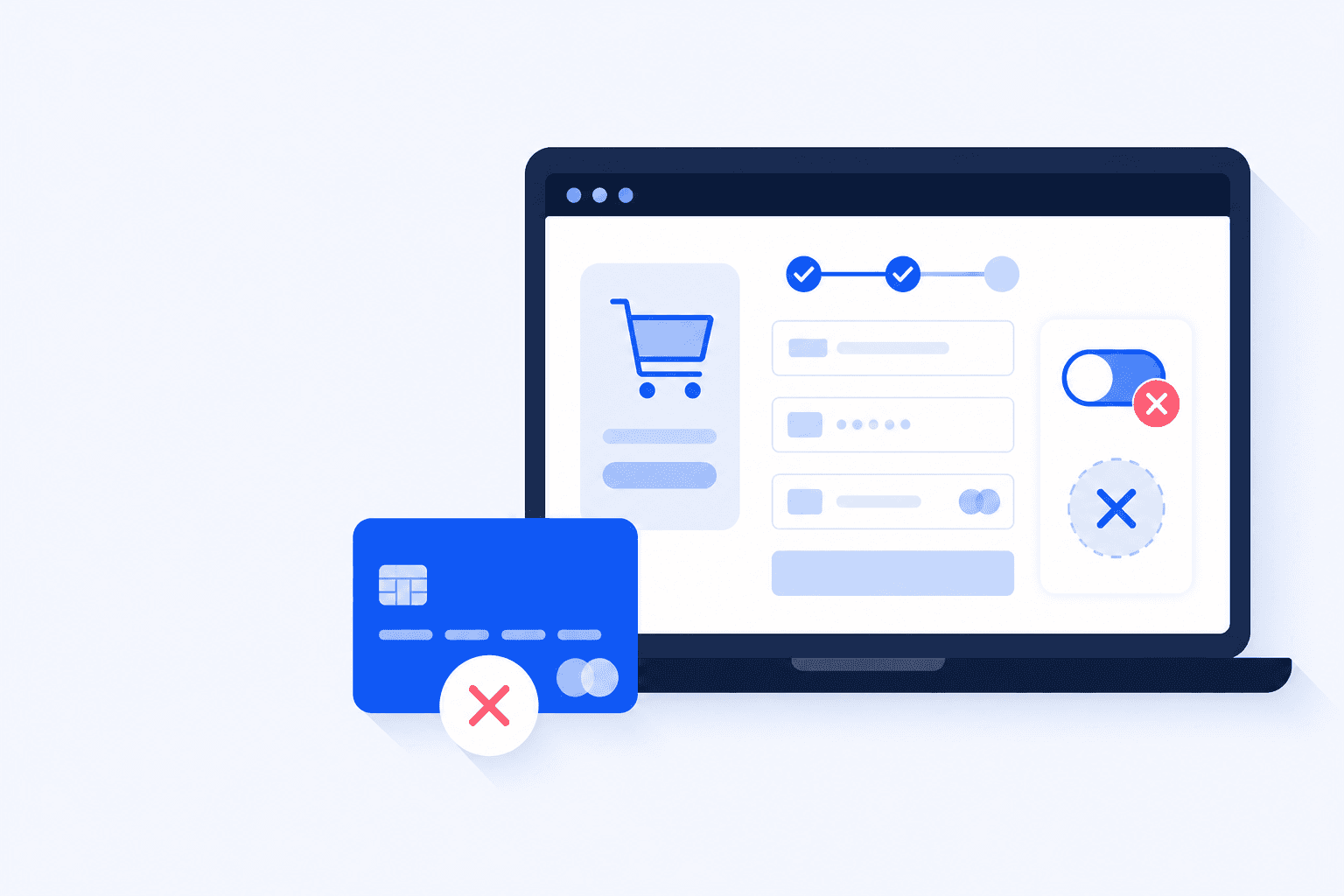
WooCommerce checkout handoff to PayPal fails when credentials or SSL break
Animated diagram: checkout hands off to PayPal; credentials or SSL fail, and the payment toggle flips to failed before the order can complete.
Fix 1: Check Which PayPal Plugin You're Using
WooCommerce has shipped several PayPal integrations over the years. Stores often run two at once after a migration, or still use a legacy “PayPal Standard” setup while expecting Smart Buttons behavior. Identify the active plugin before you chase settings that belong to a different product.
Fix 1: Check Which PayPal Plugin You're Using
In 2026, the official path for most stores is WooCommerce PayPal Payments (the current extension maintained for WooCommerce). Older plugins such as classic PayPal Standard / Express Checkout modules, abandoned third party gateways, or “PayPal for WooCommerce” forks may still work but break more often after WooCommerce or PHP updates.
Do this now:
Plugins → Installed Plugins: list every PayPal related extension. Deactivate duplicates on staging first.
WooCommerce → Settings → Payments: confirm which gateway is Enabled and which is only leftover config.
If you still run PayPal Standard alone: plan a move to WooCommerce PayPal Payments. Standard remains usable for some flows but lacks modern onboarding, Smart Buttons, and clearer webhook tooling.
Read the plugin’s System Status / Connection tab. Many versions show “Connected,” last webhook, and environment (Sandbox vs Live) in one screen.
Never enable two PayPal gateways that both try to render Express Buttons on the same cart/checkout. You will get missing buttons, double buttons, or JS collisions that look like “PayPal is down.”
Fix 2: API Credentials
Most “sudden” PayPal outages are credential problems: rotated secrets, sandbox keys pasted into live, Client ID from the wrong app, or an incomplete onboarding that never finished REST API access.
In the PayPal Developer Dashboard, open the app your store uses. Confirm Client ID and Secret match WooCommerce exactly. Do not leave trailing spaces or mix sandbox and live values.
In WooCommerce PayPal Payments (or your gateway), re save credentials and run the built in connection / onboarding check if available.
Verify the PayPal account can receive the store currency. Unsupported currency + live credentials often surfaces as a vague checkout error.
If you recently transferred the PayPal business account or changed the primary email, re authorize the plugin. Linked REST apps do not always survive ownership changes.
Check PayPal → Activity / API calls for 401 Unauthorized or INVALID_CLIENT around the time of failed checkouts.
After credentials look clean, place one controlled test. For card gateways you would use Stripe test cards; for PayPal, use sandbox buyer accounts (Fix 6) or a tiny live refundable order on a staging clone that cannot email real customers.
Do not paste live Client Secret into staging that is publicly reachable. Staging should use sandbox credentials and must not share production webhook endpoints.
Fix 3: SSL Certificate Issues
PayPal requires HTTPS on return URLs, cancel URLs, and webhook / IPN listeners. An expired certificate, mixed content checkout, or HTTP canonical URL will break redirects and status updates even when the PayPal dashboard still looks healthy.
Open your checkout URL in an incognito window. The padlock must be valid. There must be no “Not secure” warning or certificate name mismatch.
WooCommerce → Settings → Advanced: confirm Checkout and Account endpoints use https:// and match your real domain (www vs non www consistency matters).
If you terminate TLS at Cloudflare or a load balancer, make sure origin SSL is also valid. PayPal’s server to server calls hit your public HTTPS endpoint, not your browser cache.
After renewing Let’s Encrypt or changing hosts, test PayPal again immediately. Leftover HTTP redirects on thank you pages strand orders in Pending Payment.
Mixed content (HTTP scripts or images on an HTTPS checkout) can also block PayPal’s JavaScript. Fix the theme/CDN asset URLs, then hard refresh and retest Smart Buttons.
Fix 4: IPN Problems
Instant Payment Notification (IPN) is the legacy PayPal callback that tells WooCommerce a payment completed. Newer PayPal Payments setups prefer REST webhooks, but many stores still depend on IPN, or run a hybrid where IPN silently fails while the buyer sees a green PayPal screen.
Typical IPN / webhook failure signs:
PayPal shows payment completed; WooCommerce order stays Pending Payment or On Hold.
WooCommerce logs mention IPN / webhook verification failures, empty payloads, or HTTP 403/401 from security plugins.
Thank you page loads, but stock and emails never update until you manually mark the order paid.
Fix sequence:
In PayPal account settings, confirm the IPN listener URL (if you still use IPN) points at your live site’s PayPal plugin endpoint, not staging, not an old domain.
For WooCommerce PayPal Payments: open the webhook / connection status in the plugin and resubscribe webhooks after domain or SSL changes.
Whitelist PayPal’s callback paths in firewalls, Wordfence, and bot fights. Aggressive “block unknown POST” rules are a top cause of paid but unpaid orders.
Disable full page cache on cart, checkout, my account, and order received. Cached thank you HTML plus a missed webhook is a classic combo after a performance plugin update. This is the same class of breakage covered when checkout breaks after an update. Clear CDN cache after changing those exclusions.
Finally, place a test payment and watch both sides: PayPal activity should show Completed, and WooCommerce should move to Processing/Completed within a minute. If not, check WooCommerce → Status → Logs for the paypal channel at that timestamp.
Fix 5: Plugin or Theme Conflict
PayPal’s buttons and create order calls depend on front end JavaScript and specific checkout hooks. Optimization plugins, custom checkout builders, and security suites break that path without taking the rest of the site down.
Frequent conflict sources:
Defer/async JavaScript and “delay JS” optimizations that break PayPal Smart Buttons.
Checkout field editors, multi step checkouts, and page builders replacing the native checkout block/shortcode.
Currency switchers and dynamic pricing plugins that change totals after PayPal created the order.
Consent / cookie banners that block third party scripts until acceptance and never reload PayPal’s SDK.
Two payment plugins both injecting PayPal Express on cart and mini cart.
On staging: switch to Storefront or Twenty Twenty Five, disable everything except WooCommerce and your PayPal plugin, clear caches, and retry checkout. If PayPal works, enable plugins again in small batches until it fails again. That last plugin (or its JS optimization setting) is the culprit. Whitelist PayPal domains and exclude checkout scripts from delay/minify.
Fix 6: Sandbox Testing Not Working
Sandbox failures waste hours because teams treat them like production outages. Often sandbox is simply misconfigured, or you are testing live credentials against sandbox buyers.
In the plugin, set environment explicitly to Sandbox. Confirm Client ID / Secret are from a Sandbox app in the Developer Dashboard, not Live.
Create a Sandbox Business account (seller) and a Sandbox Personal account (buyer). Log out of any real PayPal session in that browser before testing.
Use a private window. Logged in live PayPal cookies routinely confuse sandbox redirects.
If Smart Buttons never render in sandbox: check the browser console for SDK load errors and confirm the sandbox Client ID is allowed for your site domain in the app settings.
Remember: sandbox availability can lag. If the PayPal sandbox status page shows incidents, pause and retest later. Do not rotate live production keys because sandbox blinked.
When sandbox finally passes, re verify live credentials in a controlled window (low traffic hour or staging with live keys only if the clone cannot accept real customer traffic). Never assume sandbox green means live webhooks are subscribed.
How to Know When PayPal Breaks (Before Customers Do)
Credential expiry, webhook blocks, SSL renewals, and “harmless” optimization updates do not page you. Uptime monitors still see 200 OK while PayPal checkout is dead. Waiting for a support email is how stores lose a full afternoon of revenue.
ShopMonitor runs scheduled browser checkouts against your real purchase path and alerts when the flow fails, including payment steps that look fine in the admin. Combine that with a habit of testing each gateway after plugin updates, using the same rigor you would for Stripe test card checkout checks.
Alert when Place Order / PayPal hand off fails even if the homepage is healthy.
Re test PayPal after SSL renewals, firewall rule changes, and performance plugin updates.
Keep WooCommerce PayPal logs enabled for a week after any credentials or webhook change.
Treat “PayPal paid / WooCommerce pending” as a P1. It is a webhook/IPN failure, not a slow customer.
Stop Losing Revenue to Broken Checkouts
ShopMonitor runs automated checkout and form tests every day, and alerts you the moment something breaks. No code changes. No plugins. Setup in 5 minutes.
The usual causes are wrong or mixed sandbox/live API credentials, SSL problems on return or webhook URLs, failed IPN/webhooks after a firewall or cache change, conflicting PayPal plugins, or JavaScript optimization that breaks Smart Buttons. Identify the symptom first (missing button, failed redirect, paid but pending order, or on page gateway error), then fix credentials, SSL, and callbacks before reinstalling plugins.
PayPal likely captured the payment while your site never received or accepted the IPN/webhook. Confirm the listener URL, resubscribe webhooks in WooCommerce PayPal Payments, whitelist PayPal POSTs in security plugins, and exclude checkout/thank you pages from full page cache. Then run a test order and confirm the status flips to Processing without manual intervention.
For most new and actively maintained stores, WooCommerce PayPal Payments is the better default: modern onboarding, Smart Buttons, and clearer REST/webhook tooling. PayPal Standard can still process payments on older setups, but it is easier to misconfigure and harder to debug when callbacks fail. Avoid running both gateways enabled at once.
Usually the gateway is disabled, credentials are missing, another PayPal plugin conflicts, or deferred/delayed JavaScript prevents the PayPal SDK from loading. Consent banners that block third party scripts until accept can also leave an empty button area. Test with a default theme and only WooCommerce + PayPal active, then whitelist PayPal scripts in your optimizer.
Use the plugin’s Sandbox mode with Sandbox buyer and seller accounts from the PayPal Developer Dashboard. Log out of live PayPal, use a private window, and confirm the plugin environment is Sandbox end to end. For broader checkout coverage beyond PayPal, keep a repeatable checkout test checklist and monitor the full path on a schedule.
Yes. Firewall and WAF rules that challenge or block unknown POST requests often drop PayPal callbacks. The buyer sees a successful PayPal payment while WooCommerce never updates the order. Whitelist your PayPal plugin endpoints and PayPal’s notifying IPs/paths per current PayPal documentation, then retest with a real sandbox or low value live payment.
Last updated: August 2026. Covers WooCommerce PayPal Payments, legacy IPN/webhook hand offs, SSL requirements, and common plugin conflicts.
About the author
Written by the Winning Solutions team, the agency behind ShopMonitor. We debug WooCommerce payment stacks where PayPal looks green on the provider side while the order never leaves Pending. This guide is the checklist we run before blaming the host.