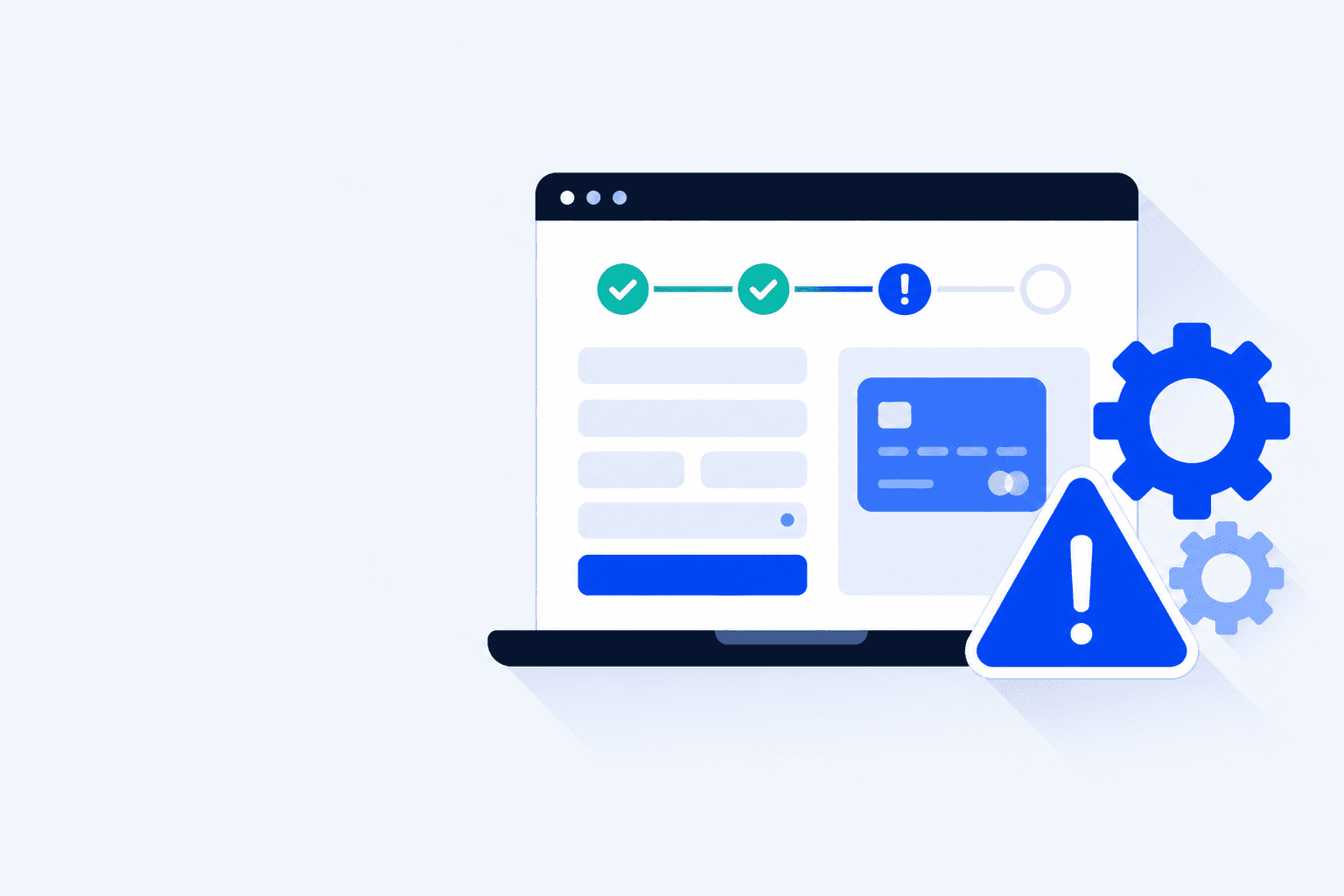
Yesterday checkout worked. Today - after a WordPress, WooCommerce, gateway, theme, or “harmless” plugin update - Place Order spins forever, throws a red notice, or drops customers back to the cart with no order. The store is still up, uptime is green, and the conversion path is dead. Use this guide to find which update broke checkout, isolate the conflict, apply the right fix by error type, and lock in a post-update checklist so the next release night does not surprise you.
Which Update Is the Culprit?
Do not guess. Updates rarely break “WordPress in general” - they break a specific layer of checkout. Match symptoms to the layer that changed, then confirm with logs and a binary isolation test. If you already know how to place a controlled test order, keep that workflow ready while you bisect - see our guide on how to test your WooCommerce checkout.
WordPress core
Major or minor WP releases can change REST behavior, script loading, cookies, or PHP expectations. Checkout that relies on custom AJAX or outdated `wp_footer` hooks often fails right after a core bump. Clue: multiple plugins complain at once, or the health screen shows new PHP/compatibility warnings overnight.
WooCommerce
WooCommerce updates touch sessions, Store API / Checkout Block templates, payment registration, and order creation. Classic and block checkout can break differently after the same release. Clue: Status → Logs fill with fatals around `wc-ajax` / store API the moment Place Order is clicked.
Payment gateway
Stripe, PayPal, Klarna, and bank plugins ship API and webhook changes often. An update can flip live/test keys, rename settings, or break the return URL. Clue: cart and shipping look fine; failure only appears when a payment method is selected or after redirect.
Theme
Theme updates override `woocommerce/` templates (`checkout/form-checkout.php`, block wrappers, mini-cart). A “design polish” release can remove hooks payment or field plugins need. Clue: Storefront checkout works; your active theme’s checkout does not.
Third-party plugins
Caching, security, CAPTCHA, multi-currency, field editors, and page builders hook the same submit path WooCommerce owns. One update changes script order, blocks a POST, or caches a dynamic page. Clue: only WooCommerce + gateway active restores orders immediately.
Tip: Use an activity / audit log
If you run a plugin such as WP Activity Log, Simple History, or your host’s deploy log, check what changed in the hour before the first failed order. Timestamped plugin/theme/core updates turn a vague “something broke” into a short suspect list. Without a log, use hosting backups or the plugin list “last updated” dates and work newest-first.
Isolation in one picture: sweep the five layers an update can touch, mark the culprit, fix it - and Place Order works again.
Step 1 - Identify the Error
Name the failure before you deactivate anything. “Broken checkout” is not a diagnosis - it is a symptom bucket. Capture evidence from the customer path and the server path.
Reproduce in a private/incognito window as a guest (and once logged in). Note whether the cart empties, shipping recalculates, or Place Order never fires.
Open the browser Network tab: failed `?wc-ajax=checkout`, Store API `/wc/store/v1/checkout`, or gateway XHR calls are your primary clues. Screenshot the status code and response body.
Read the on-screen message verbatim. “Invalid nonce,” “payment error,” blank spinner, and “submission not found” are different root causes.
Open WooCommerce → Status → Logs for the same minute. Also check PHP error logs in the host panel for fatals after the update timestamp.
Confirm whether payment authorized at the gateway without a WooCommerce order - that mismatch means you are past a UI bug and into write/callback territory.
If logs mention a database “not found” / submission fault, jump to our dedicated fix for WooCommerce submission not found in the database after you finish isolation - do not start with schema repair plugins while a conflicting update is still active.
Step 2 - Isolate the Conflict
Isolation proves which package broke checkout. Prefer staging. If you must use production, do it in a maintenance window and take a backup first.
1
Freeze further auto-updates
Disable plugin/theme auto-updates until checkout is healthy again. Another overnight bump mid-debug wastes hours.
2
Clear every cache layer
Purge page cache, object cache, CDN, and server cache. Retest once. Stale HTML after an update often mimics a code bug.
3
Default theme + minimal plugins
Switch to Storefront (or a default theme). Leave only WooCommerce and your payment gateway active. Place a test order.
4
Binary search plugins
If checkout works on minimal stack, reactivate half the plugins, test, repeat. When it breaks, bisect that half until one plugin remains.
5
Re-test the theme last
With the suspect plugin identified (or cleared), reactivate your theme and retest. Theme + plugin collisions are common after paired update nights.
Never debug checkout conflicts only while logged in as admin. Capability differences, admin bar scripts, and “logged-in cache bypass” hide guest failures. Always verify as a logged-out customer.
Step 3 - Common Fixes by Error Type
Once you know the culprit package and the error shape, apply the matching fix. Roll back the offender if no patch exists yet - staying on a broken “latest” is not virtue.
JavaScript / Place Order does nothing
Usually a script conflict, deferred/minified `wc-checkout`, or a theme missing `wp_footer`. After an optimization-plugin update this is the top pattern.
Exclude `jquery`, `wc-checkout`, and gateway scripts from minify/combine/delay.
Temporarily disable JS optimization entirely and retest.
View source: confirm checkout scripts appear before `</body>`.
Check the browser console for the first red error on Place Order - fix that file/plugin, not symptoms downstream.
Nonce / session / “link expired” errors
Caching or security plugins often start caching cart/checkout after an update, or change cookie rules. Guests get stale tokens.
Exclude `/cart`, `/checkout`, `/my-account`, and order-received URLs from page cache and CDN “cache everything”.
Purge again after exclusions; verify HTML/nonce values change between anonymous loads.
Review security plugins for new firewall rules blocking `admin-ajax.php` or Store API POSTs.
Payment gateway declines or redirect loops
Gateway updates frequently require reconnecting OAuth, rotating webhooks, or enabling a new API version.
Re-save gateway settings; confirm live vs test mode matches intent.
Regenerate webhooks/return URLs in the provider dashboard pointing at your current domain.
Place one known-good test payment (provider test mode) before going live again.
Fatal error / white screen on checkout
A PHP incompatibility or removed function after WP/WooCommerce/PHP bump. The site may still serve the homepage from cache.
Enable `WP_DEBUG_LOG` on staging (not display_errors on production).
Roll back the last updated plugin/theme via WP Rollback or a backup copy.
Align PHP version with what WooCommerce and the gateway officially support.
Order created but confirmation email missing
Checkout “works,” but customers think it failed. SMTP/plugin updates often break mail while orders still save - treat delivery as part of checkout health. See WooCommerce order confirmation email not sending for the mail-specific checklist.
Step 4 - Restore from Backup (Last Resort)
If isolation fails, the host is unstable, or multiple packages updated at once and you cannot bisect safely, restore to the last known-good snapshot - then fix forward on staging.
Restore files + database together from the backup taken before the bad update window. File-only restores leave mismatched options tables.
Put the site in maintenance mode during restore; verify checkout immediately after.
On a staging clone of the restored site, re-apply updates one at a time with a test order after each.
Document the offending version. Pin or delay that update until the vendor ships a fix; do not re-enable blind auto-updates the same night.
A restore is not a monitoring strategy. Without a scheduled checkout test, the next update night can repeat the outage while you sleep.
The Underlying Problem: Updates Break Checkouts More Than Anything Else
Homepages are resilient. Checkouts are brittle: sessions, cookies, nonces, tax/shipping, payment SDKs, CAPTCHAs, and email in one path. Any update can change timing or script order enough to fail Place Order while marketing pages still look perfect.
Auto-updates cluster at night and on weekends - when no one watches analytics. Customers abandon. Tickets arrive late with vague “payment didn’t work” messages. By Monday you reconstruct the incident from gateway settlements and incomplete logs.
Silent form and checkout failures need continuous checks, not only deploy-day QA. Our overview of WordPress form failure monitoring covers why HTTP 200 uptime is not conversion health. ShopMonitor runs scheduled real-browser checkout tests and alerts on failure - so a broken update is a five-minute page, not a lost weekend of orders.
Checklist: After Every Major Update
Run this list after WordPress core, WooCommerce, gateway, theme, or caching/security updates - before you call the release “done.”
Backup verified (or host snapshot) from immediately before the update.
Caches purged (plugin + object + CDN + server).
Guest checkout: add to cart → shipping → payment → Place Order.
Logged-in checkout once (account + saved address paths).
Confirm order appears in WooCommerce with the expected status.
Confirm customer and admin notification emails arrived (or are queued correctly).
Spot-check mobile viewport; many theme/CSS updates only break small screens.
Re-check cache exclusions for cart/checkout/order-received.
Skim WooCommerce → Status → Logs for new fatals in the update window.
Leave a scheduled monitor running - do not rely on one manual test forever.
Stop Losing Revenue to Broken Checkouts
ShopMonitor runs automated checkout and form tests every day - and alerts you the moment something breaks. No code changes. No plugins. Setup in 5 minutes.
Most post-update checkout failures come from a conflict in scripts, cache rules, payment gateway APIs, or theme template overrides - not from “WooCommerce being down.” Identify the package that changed (core, WooCommerce, gateway, theme, or another plugin), reproduce the exact error, then isolate with a default theme and minimal plugins.
Roll back the last package that changed when the failure started - often a caching, security, or gateway plugin rather than WooCommerce itself. If several updated together, restore a backup or bisect on staging. Staying on a broken “latest” version while customers cannot pay costs more than a temporary rollback.
Use a staging site or gateway test mode, place a full guest order, confirm the order record and emails, then repeat once on production with a small controlled payment if needed. Automate the same path on a schedule so the next update night is caught without waiting for a customer complaint.
Yes. ShopMonitor runs scheduled real-browser checkout (and form) tests and alerts when a run fails. That catches overnight auto-updates and silent Place Order failures even when uptime monitors still report green.
Last updated: August 2026. Applies to WooCommerce 8.x+ on WordPress 6.5+. Always isolate on staging before rolling back production plugins.
About the author
Written by the Winning Solutions team - the agency behind ShopMonitor, automated WooCommerce checkout and form monitoring.