woocommerceagencymonitoringmulti-storedashboard
How to Monitor Multiple WooCommerce Stores from One Dashboard
September 3, 20268 min read·ShopMonitor Team
Loading…
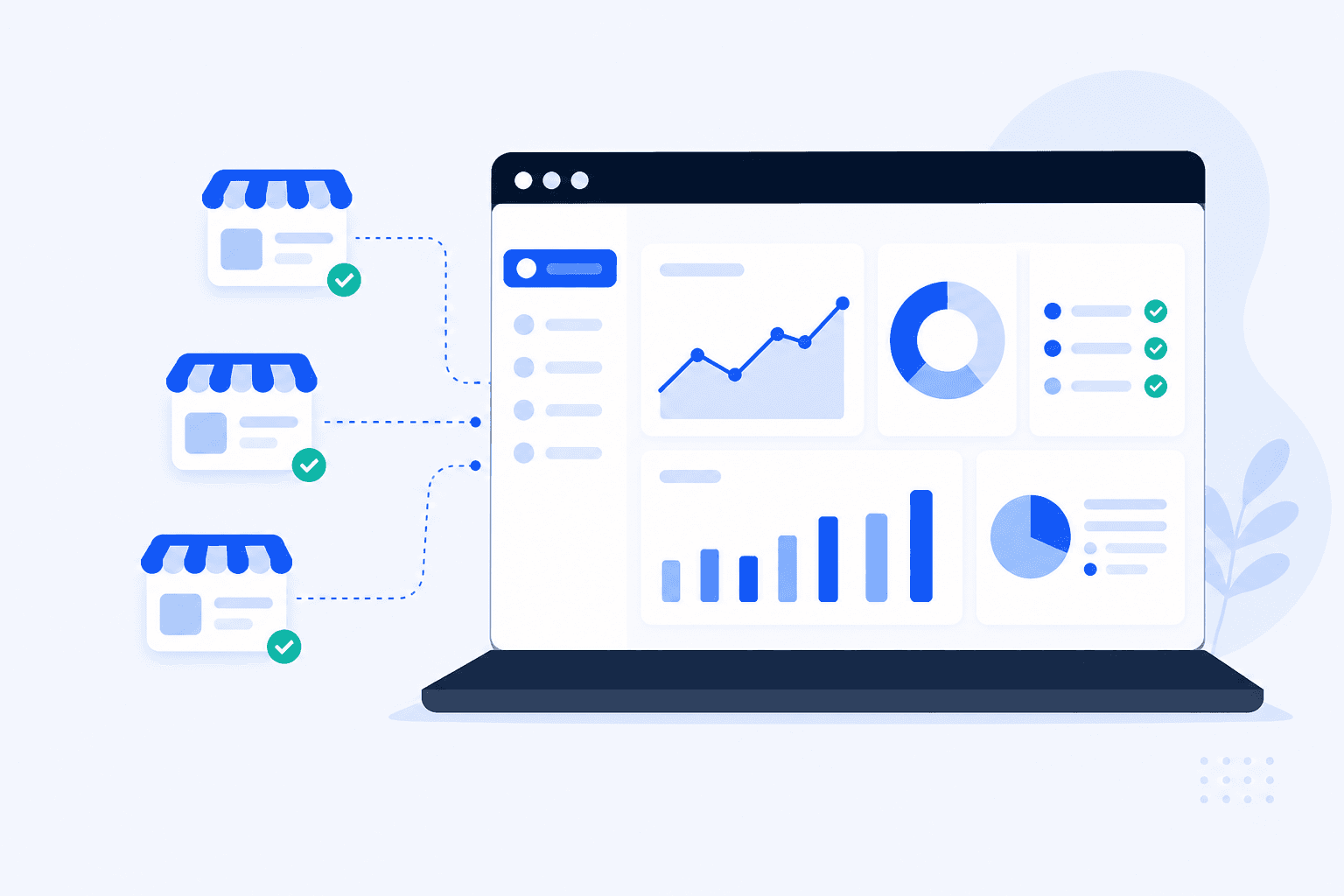
One broken checkout is frustrating. Three broken checkouts across different client shops are a support problem, a revenue problem, and a difficult conversation waiting to happen. This guide shows how to keep several WooCommerce shops under control from one place, without turning routine checks into a daily round of browser tabs.
Agencies and teams with several brands rarely struggle because they do not understand WooCommerce. The problem is that small failures happen in different places, at different times, and often without anyone seeing them immediately.
Many logins, little certainty
Every shop changes on its own schedule
Clients expect early notice
Busy periods expose every weak point
The answer is not more people clicking through more shops. It is a clear view that shows whether each important purchase or enquiry path still works on a useful schedule.
A portfolio view is useful only when it answers the question that matters: can a customer still complete the next important action? For WooCommerce shops, that means checking the actual browser journey, not just whether a page returned a response.
The full checkout journey
Critical forms
A status for every shop
Clear client ownership
| Signal | Proves | Misses across many shops |
|---|---|---|
| Homepage uptime | DNS / TLS / origin answered | Broken checkout, forms, payment APIs |
| Manual shop check | It worked while you watched | Nights, weekends, other client shops |
| Browser check for each shop | Conversion path completed on schedule | Only flows you forgot to configure |
If your dashboard cannot show which shop failed its most recent checkout check, you do not have useful monitoring. You have a longer bookmark list.
Open each shop in a private browser window, add a product, complete the checkout with a test payment, and submit a contact form. Record what happened. Repeat after a meaningful change.
Where manual still helps
Where it collapses at scale
Keep manual as a gate
UptimeRobot, Pingdom, Better Stack, and host health checks are useful. They answer a different question: is the server reachable? Many WooCommerce failures happen while the answer is still yes.
Use uptime monitoring alongside conversion checks. One cannot replace the other. A green status across fifty domains is little comfort when customers cannot order in three of them.
ShopMonitor checks WooCommerce and WordPress purchase and form journeys in a real browser. Add each shop once, choose a schedule, and see the results across the portfolio in one account. Core monitoring needs no custom test infrastructure and no WordPress plugin.
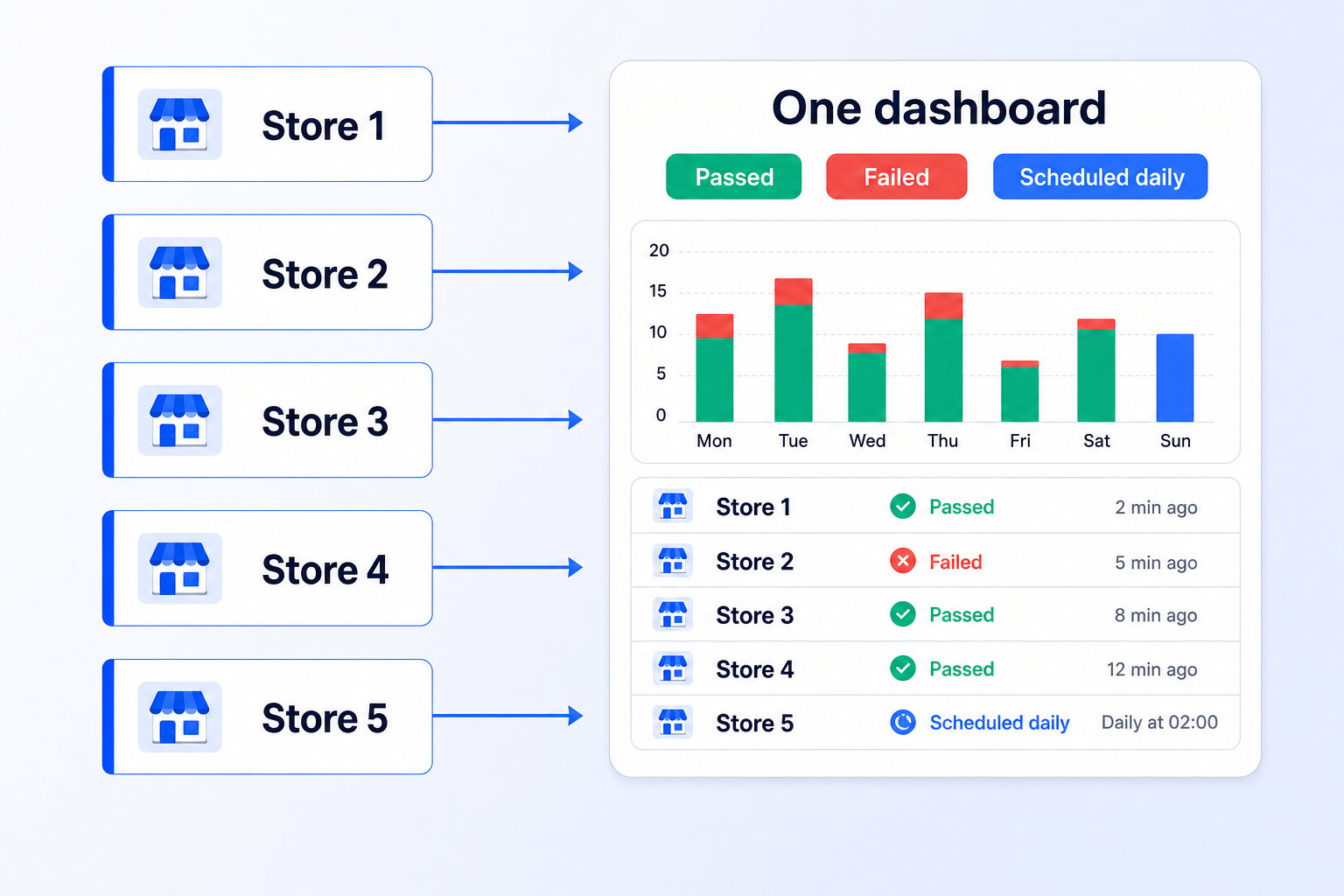
Several WooCommerce shops send their check results to one dashboard.
One account, many stores
For agencies, continuous checkout checks can become a clear part of a care plan. The same dashboard gives the team a shared operational view across every client shop.
Adding a new domain should take minutes, not a project plan. The flow follows the Add Website knowledge base guide. Here is the agency version.
Add the website URL
Enter the start URL and select WooCommerce. On Pro and Agency, assign the website to its client immediately.
Pick a test template
Choose Purchase for a full checkout check, Cart for a shorter path, Form for lead generation, or Manual for a custom journey.
Review detected steps
Confirm the fields, buttons, and success criteria. Adjust details such as guest checkout, required checkboxes, or regional address rules.
Schedule and alert
A daily check is a useful baseline. Use hourly checks on Pro and Agency for important shops or campaigns. Send alerts to someone who can act on them.
Run once before you leave
Start one manual run and confirm it passes. If it fails during setup, correct the flow or test payment before treating the shop as covered.
Repeat this process for each client shop. There is no separate agency installation. The dashboard is the shared workspace.
Choose a plan based on how often you need proof that important journeys work. All plans can cover multiple websites. The practical difference is run capacity and the features your team needs.
| Plan | Useful for | Check frequency | Team needs |
|---|---|---|---|
| Starter | A small portfolio | Daily checks | A straightforward overview |
| Pro | A growing client roster | Daily or hourly checks | Client organisation and more runs |
| Agency | A larger portfolio | Frequent checks | More capacity for active client work |
Start with the number of journeys you need to check each day. Multiply that by your shop count, add forms and retests, then leave room for busier weeks. A short trial gives you real usage data before you decide.
Runs matter more than site count
ShopMonitor checks checkout and form journeys in a browser and alerts you when a configured path fails. No code changes. No plugin required for core monitoring.
No credit card required.

About the author
Written by the Winning Solutions team, the agency behind ShopMonitor. We monitor WooCommerce checkouts and forms across many client shops from one dashboard. This article describes that same workflow.Last updated: August 2026. Covers monitoring several WooCommerce shops, setting up ShopMonitor, and choosing a plan for agency work.