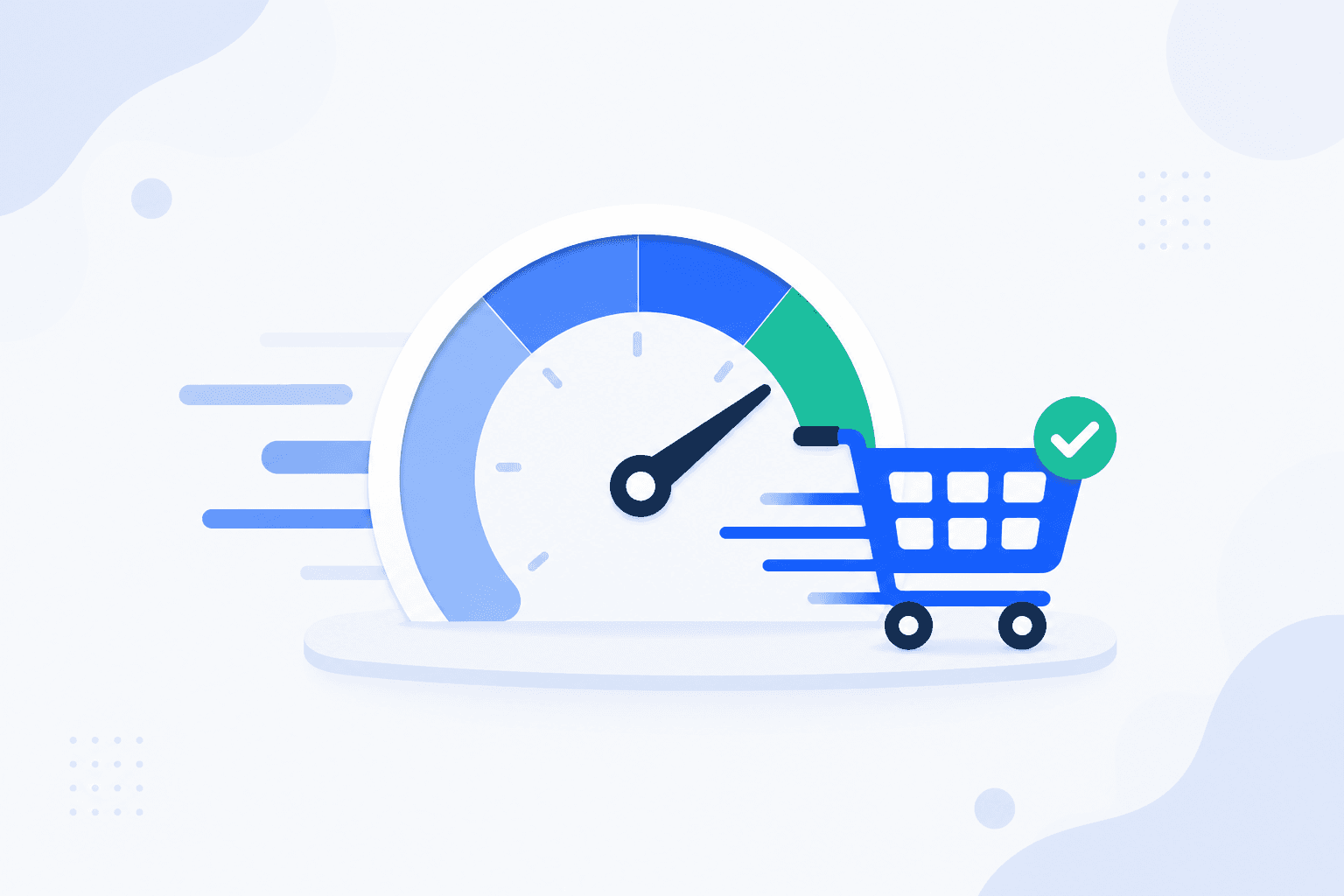
WooCommerce speed optimization advice is often written for a blog. Install a caching plugin, minify everything, lazy load every image, combine the CSS, and the score goes up. Apply that same set of changes to a store and you can lose the ability to take orders while your performance number improves. Cart and checkout are dynamic, session bound, and dependent on third-party scripts that expect to load in a specific order. The rest of your store is fair game, and that is where the real gains are. This guide covers the optimizations that work, in the order they pay off, and the five that break checkouts often enough to deserve their own section.
Illustrative PageSpeed-style scores. Synthetic tools often score the homepage high while cart and checkout stay slow because they cannot be full-page cached.
Illustrative PageSpeed-style performance scores for the same WooCommerce store: homepage 94, cart 58, checkout 31. These are example values, not a real measurement.
WooCommerce Speed Optimization Starts With Measurement
Changing settings before you have a number is how stores end up with four caching plugins and a broken payment form. Measure first, and measure the right pages.
Measuring WooCommerce Site Speed and Its Blind Spots
PageSpeed Insights, Lighthouse, GTmetrix, and WebPageTest all request your URL as a brand new anonymous visitor. No cookies, no session, no cart. For a product page or a category archive that is exactly right. For anything transactional it is not, because the page those tools render is not the page your customers see.
What the standard tools cannot show you:
The checkout with items in the cart. Requested with no session, /checkout/ renders an empty cart notice or redirects, and the tool scores that instead
AJAX cost during form entry. Every address or shipping change fires a recalculation that no single page load measurement captures
Time from Place order to the order received page. Server work and gateway authorization, the part that decides whether people finish
Logged-in behavior. Customers with accounts bypass the page cache entirely, so they get uncached response times
Real database size. A staging clone with 200 orders behaves nothing like production with 200,000
Testing Product, Cart, and Checkout Separately
The three page types have different bottlenecks, so they need three separate measurements:
1Product page, anonymous, cache warm. This is your front-end score: images, CSS, fonts, theme JavaScript. Synthetic tools are accurate here
2Cart page, one real product added. Uncached by definition. Watch time to first byte and the mini cart fragment request
3Checkout, private window, real product, mobile throttling, order actually placed. Record time to interactive and time to order placed separately
Optimizing the first number is what most guides teach. The third number is the one attached to revenue. For a full walkthrough of that third run, see our guide to slow checkout diagnosis.
Callout
A 95 on your homepage tells you nothing about your checkout. The two pages share a theme and almost nothing else: one is static and cacheable, the other is a full PHP request with a session, live totals, and third-party scripts. Score them separately or you will optimize the page that was already fast.
Caching Done Right for WooCommerce
Caching is the single biggest lever on a WooCommerce store and the single most common cause of a broken checkout. Both things are true because the same plugin controls them.
Page Caching for Product and Archive Pages
Full page caching stores the finished HTML and serves it without booting PHP. On product pages, category archives, the shop page, and your content pages this is the difference between a database-driven response and a static file. Enable it, set a sensible expiry, and make sure your caching layer respects the exclusions below. If your store sells to logged-in customers, check whether your cache serves a separate variant for them or bypasses the cache entirely, because a shared cache and personalized pricing do not mix.
What Must Never Be Cached
Cart, checkout, my account, and order received must be excluded from full page caching everywhere. Each renders session-specific data and security nonces, so a cached copy serves one visitor's cart, totals, and tokens to the next. WooCommerce sets the DONOTCACHEPAGE constant on these pages to signal this, and most WordPress caching plugins honor it. Hosting-level caches, reverse proxies, and CDN page rules frequently do not, because they answer the request before WordPress runs. Set the exclusion in every layer you have.
Object Caching With Redis or Memcached
Page caching does nothing for pages that cannot be cached, which is where object caching earns its place. A persistent object cache keeps the results of repeated database queries in memory across requests, so the uncacheable checkout stops re-running the same option and meta lookups on every load. This is the one optimization that speeds up cart and checkout without touching how they behave. Most managed WooCommerce hosts offer Redis or Memcached; if yours does, enable it before you touch anything else on this page.
Fragment Caching for the Mini Cart
Themes that show a cart count in the header force a dynamic element onto otherwise static pages. WooCommerce solves this with an AJAX fragment: the page is cached, the cart total is fetched separately. Two things go wrong. Some caching plugins cache the fragment response, which freezes the cart count at whatever the first visitor had. Others disable the fragment script for speed, which leaves the count stale until a reload. Keep the fragment request uncached, and if your theme allows it, remove the live count from cached pages rather than caching a personalized value.
Caching layer vs page type
Page type
Full page cache
Object cache
CDN static assets
Notes
Home, blog, content
Yes
Yes
Yes
Safest and highest gain
Product, archive, shop
Yes
Yes
Yes
Watch personalized pricing
Cart
No
Yes
Yes
Exclude at every layer
Checkout
No
Yes
Yes
Exclude at every layer, do not touch gateway assets
My account
No
Yes
Yes
Session bound
Order received
No
Yes
Yes
Contains order data
Cart fragment AJAX
No
Yes
Not applicable
Caching it freezes the cart count
WooCommerce caching rules by page type
WooCommerce caching rules by page type: cacheable pages on the left, never full page cached transactional pages on the right, with exclusions required at CDN, host, and plugin layers
Database Optimization for WooCommerce Performance
WooCommerce writes far more to the database than a content site, and it rarely cleans up after itself. The uncacheable pages are the ones that pay for that growth.
Cleaning Transients and Expired Sessions
WooCommerce stores shipping rate calculations, coupon lookups, and plugin data as transients, and expired ones are not removed on a schedule you can rely on. Customer sessions live in their own table and are kept for a period after the last activity, so a store with steady traffic accumulates thousands of rows belonging to nobody. Both are safe to clear. Also check your autoloaded options: every autoloaded row is read on every single request, including the checkout, and abandoned plugins routinely leave large serialized values behind.
Order Table Growth and HPOS
On legacy storage each order is a wp_posts row plus dozens of wp_postmeta rows, so order lookups run against the same tables as your content and grow without limit. High Performance Order Storage moves orders into dedicated tables with proper indexes, which changes admin order search and order queries from a meta join into a direct read. It is the one database change with a real architectural effect rather than a housekeeping effect. See HPOS and order table performance for what changes and how to migrate without losing data.
Post Revisions and Orphaned Meta
Stores with many products accumulate revisions, and each revision is another post row with its own meta. Cap revisions in wp-config.php rather than deleting them blindly, since editors sometimes need one. Orphaned meta is the more common problem: rows left behind by removed plugins, pointing at posts that no longer exist. Run maintenance in this order:
1Back up the database first, and verify the backup restores
2Delete expired transients and stale customer sessions
3Review autoloaded options and remove leftovers from plugins you no longer run
4Trim post revisions, then delete orphaned post and order meta
5Optimize tables, then re-measure the cart and checkout response times
Step 5 matters because database work is easy to do and easy to overestimate. If the numbers did not move, your bottleneck was somewhere else.
Images and Media When WooCommerce Is Slow on Product Pages
Images are usually the largest part of a product page payload and the safest thing on this list to optimize, because nothing in the payment path depends on them. Compress on upload, serve modern formats, and stop sending 3000 pixel wide files into 600 pixel wide containers.
The work that pays off, in order:
Compress every image on upload and re-run existing media once, keeping the originals
Serve WebP or AVIF with a fallback for browsers that need it
Match dimensions to display size so the browser is not downscaling large files
Set explicit width and height on product images to prevent layout shift
Lazy load below the fold only. Product gallery images above the fold and category thumbnails in the first visible row should load eagerly
Never lazy load anything inside the add to cart or payment area, for reasons covered further down
Lazy loading everything is the most common overreach. It delays the exact image a visitor came to look at, which makes the page feel slower while the measurement tool says it got faster.
Script and Style Loading to Speed Up WooCommerce
Asset optimization is where speed work stops being safe. The technique is sound, the blast radius is the part people miss.
Dequeuing Plugin Assets Where They Are Not Needed
Most plugins enqueue their CSS and JavaScript on every page because that is easiest for the developer. A slider library, a review widget, a page builder bundle, and a chat widget all load on the checkout where none of them do anything. Selective dequeuing removes them per page and leaves the rest of the site alone. Reliable candidates on cart and checkout:
Page builder front-end bundles, when the checkout is a plain shortcode or block page
Slider, gallery, and lightbox libraries
Review, wishlist, and product comparison scripts
Popup, exit-intent, and live chat widgets
Social sharing and related-product scripts
Never dequeue assets belonging to WooCommerce core, a payment gateway, or a shipping or tax integration. If checkout feels sluggish after dequeuing, see our guide to slow checkout causes and fixes before you change template markup or add more scripts.
Why Gateway Scripts Must Stay Untouched on Checkout
Payment gateway SDKs are loaded in a defined order and expect their globals to exist when the form initializes. Minifiers rewrite them, combiners change their order, and defer moves them after the code that depends on them. The failure is quiet: card fields do not render, or the submit handler never binds and the button does nothing. Add gateway handles to your optimization plugin's exclusion list, and add the checkout page to its page-level exclusions as well.
Callout
Optimization plugin exclusions are per layer, not global. A checkout excluded in your caching plugin can still be minified by a separate optimization plugin, combined by your theme's built-in asset tool, and cached by a CDN page rule. Check all of them, then load the checkout in a private window and confirm the payment fields still render.
Hosting and Infrastructure
Infrastructure sets the ceiling for everything above. You cannot optimize your way out of an undersized server on a page that cannot be cached, and the checkout is the most PHP-heavy page on the store.
The four levers worth checking, in order of typical impact:
1PHP version. Run a currently supported release that WooCommerce lists as supported, and update it deliberately rather than letting the host decide. Test the checkout after every PHP version change
2Resource limits. PHP workers decide whether requests queue behind each other under load, and memory limit decides whether large admin operations fail. Both are host settings, not plugin settings
3CDN for static assets. Serve images, CSS, and JavaScript from edge locations, with page caching rules that exclude the transactional pages
4Server location. Latency is geography. A server on a different continent from most of your customers adds a round trip cost to every request that no caching plugin recovers
Also move WordPress cron to a real system cron. Left on the default, scheduled tasks run on visitor page loads, and one unlucky customer pays for your batch jobs during checkout.
What Not to Optimize
Five changes that look like standard performance work and are not safe on a store. Each one has a specific consequence.
Do Not Cache the Checkout
A cached checkout serves one customer's session, cart contents, totals, and nonces to another. Consequence: intermittent wrong cart contents, expired nonce errors on submit, and in the worst case an order received page showing somebody else's order. This is the failure that generates support tickets you cannot reproduce, because it depends on who was cached first and when.
Do Not Minify or Defer Payment Gateway Scripts
Gateway SDKs assume load order and expect their globals to be available at form initialization. Consequence: the card field iframe never renders, or the Place order button silently does nothing on click. Customers read that as a failed payment and leave. The problem often affects one gateway while the others keep working, which is why it survives a quick manual check.
Do Not Lazy Load the Add to Cart Area
Lazy loading below-the-fold content is normal practice and wrong here. The add to cart and payment regions contain hidden fields, iframes, and event bindings that must exist when the form is submitted. Consequence: the first click does nothing, variation selection fails to enable the button, or the payment area appears after the customer already scrolled past and gave up.
Do Not Combine CSS Blindly on Checkout
Combining stylesheets breaks the cascade wherever gateway or plugin CSS depends on load order, and it strips the iframe-scoped styles some gateways inject. Consequence: a misaligned, zero-height, or invisible card input field. The page looks nearly correct, which is why this one ships to production more often than the others and is found by a customer.
Do Not Remove jQuery if a Gateway Depends on It
Removing jQuery is a legitimate front-end optimization on a plain content site. WooCommerce core scripts and many gateways still depend on it, along with jQuery Blockui for the checkout overlay. Consequence: the checkout stops updating totals, the overlay never clears, and order submission fails with a JavaScript error no visitor will report to you.
WooCommerce optimizations that break checkout
Five optimizations that break WooCommerce checkout: caching checkout, minifying or deferring gateway scripts, lazy loading add to cart, combining CSS on checkout, and removing jQuery, each with its typical symptom
Verify on a WordPress Staging Site, Then Production
Performance plugins are one of the most common causes of checkout failure, and the failure mode makes them hard to catch. The break is usually partial: one gateway out of three, one product type, one country's tax rules, or only on mobile. Run every optimization round on a WordPress staging site that mirrors production plugins, theme, and gateway modes before you touch live traffic.
So the check has to be an actual order, not a page load. After every optimization round, place a test order with every gateway you offer, on at least one variable product and one simple product, and confirm the order received page renders and the order appears with the right total. Our walkthrough on how to test after optimizing covers the full manual sequence. When something did break, the change log from your optimization round is the first place to look, the same reasoning that applies when a checkout breaks after a change.
An optimization is not finished when the score improves. It is finished when a real order has gone through with every gateway you offer.
The realistic problem is repetition. Done by hand, a full multi-gateway test order gets run once, right after the change, and then never again, so the regression that arrives with next month's plugin update goes unnoticed. ShopMonitor runs a complete checkout in a real browser on a schedule and alerts you when a run fails, which turns that one-off verification into something that keeps happening. It is a checkout monitor, not a performance optimizer: it will not make your store faster, it will tell you when an optimization stopped it from taking orders. It verifies the browser checkout and the order received path, not whether a message landed in an inbox, which is a separate check.
Stop Losing Revenue to Broken Checkouts
ShopMonitor runs automated checkout and form tests every day and alerts you the moment something breaks. No code changes. No plugins. Setup in 5 minutes.
Four levers, in the order they usually pay off. First, hosting and PHP: a current supported PHP version, enough PHP workers, and a persistent object cache. Second, caching: full page caching for product and content pages, with cart, checkout, my account, and order received excluded at every layer. Third, images: compress, serve modern formats, size them to their containers, and lazy load below the fold only. Fourth, assets: dequeue plugin CSS and JavaScript on pages that do not use them, leaving payment gateway assets alone. Measure before and after each step on a WordPress staging site, then place a real order on production with every gateway you offer.
Not with full page caching. Both render data specific to one visitor at one moment: cart contents, totals, shipping options, tax, and security nonces. A cached copy serves that data to the next visitor, which produces wrong carts, nonce errors, and failed orders. WooCommerce sets the DONOTCACHEPAGE constant on these pages for exactly this reason. Object caching and the cart fragment mechanism are both fine and both help, since they speed up the request without storing the rendered page.
Almost always missing exclusions. Either the plugin cached cart and checkout because its WooCommerce detection did not apply to your setup, or its asset optimization features minified, combined, or deferred payment gateway scripts. Both are separate settings, and turning off page caching does not turn off asset optimization. Exclude the four transactional pages from page caching, add gateway script handles to the minify and combine exclusion lists, then place a test order with every gateway before you consider it resolved.
Yes, measurably, and for structural reasons. WooCommerce adds database tables and a large amount of order and product metadata, keeps a session for every visitor with a cart, and marks four pages as uncacheable so they always run full PHP. It also registers its own scripts and styles across the front end. The mitigations are the ones above: a persistent object cache so uncacheable pages stop repeating queries, regular database maintenance, HPOS for order storage, and dequeuing WooCommerce assets on pages that are not part of the shop.
Use a version that is both currently supported by the PHP project and listed as supported in the WooCommerce system requirements, and check that page rather than trusting a version number in an article, since the answer changes. As a rule, do not run a PHP release that no longer receives security updates, and do not jump to a brand new major version before your gateway, shipping, and tax plugins list it as compatible. Whichever version you move to, place a test order with every gateway immediately after the switch.
About the author
Written by the team at Winning Solutions, the agency behind ShopMonitor. We help WooCommerce stores speed up product and archive pages without breaking cart and checkout, with scheduled browser tests that catch regressions after each optimization round.
WooCommerce Speed Optimization Without Breaking Checkout | ShopMonitor